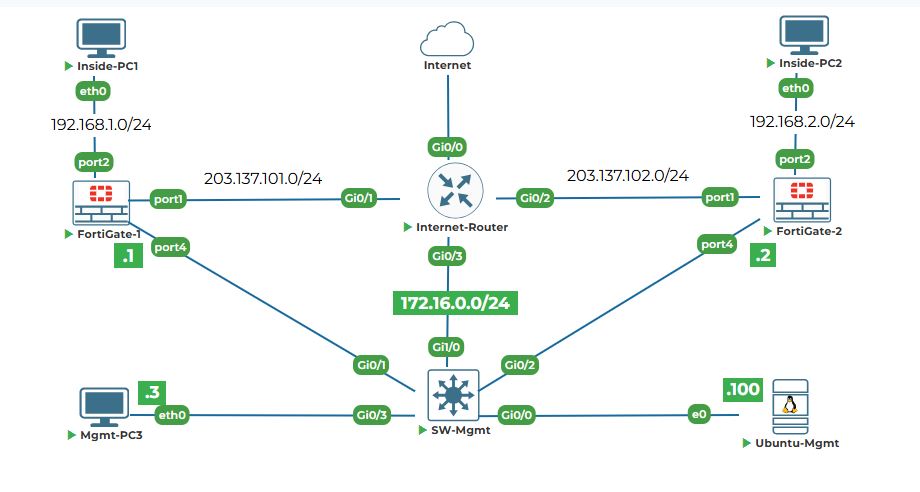
Objective: Power on all devices in the topology and access their console connections to prepare for initial configuration.
Why are we doing this? Before we can configure anything, we need to ensure all devices are powered on and we have a way to access them. Since no IP addresses are configured yet, the console is the only way to access the devices. This is like turning on your computer before you can use it.
Task 1.1: Power on all devices in the topology.
Step 1: Look at your lab topology window.
1. You will see icons for the following devices:
● Internet-Router (Cisco Router)
● FortiGate-1
● FortiGate-2
● SW-Mgmt (Layer 2 Cisco Switch)
● Ubuntu-Mgmt (Ubuntu Desktop)
● Inside-PC1
● Inside-PC2
● Mgmt-PC3
2. Right-click on each device (or select all and click the play button) and select "Start" to power them on.
3. Wait about 2-3 minutes for all devices to completely boot up. The device icons should turn green when they are fully operational.
Task 1.2: Access the console of FortiGate-1 via the platform.
Step 1: Find FortiGate-1 in the topology.
1. Look for the device labeled "FortiGate-1" in your topology diagram.
2. Left-click on its icon,
3. A new tab will open in your browser window showing a black screen with a blinking cursor.
Step 2: Verify console access.
1. Press the Enter key a few times.
2. You should see a login prompt (FortiGate-VM64-KVM:) appear. This confirms you have console access to the firewall.
Task 1.3: Access the console of FortiGate-2 via the platform.
Step 1: Repeat the exact same process for FortiGate-2.
1. Find FortiGate-2 in the topology and left-click its icon.
2. Open its console in a separate tab.
3. You will now have two browser tabs open - one for each firewall console. Keep both open as we'll switch between them throughout the labs.
Task 1.4: Access the console of Ubuntu-Mgmt via the platform.
Step 1: Access the Ubuntu management workstation.
1. Find the Ubuntu-Mgmt desktop icon in the topology.
2. Left-click it to open its console.
3. A new tab will open showing the Ubuntu GUI asking for username and password.
Step 2: Organize your browser tabs.
1. You should now have three console tabs open in your browser:
● Tab 1: FortiGate-1 Console
● Tab 2: FortiGate-2 Console
● Tab 3: Ubuntu-Mgmt Console
2. Label or arrange these tabs so you can easily switch between them as needed throughout the labs.


